> ## Documentation Index
> Fetch the complete documentation index at: https://docs.meld.io/llms.txt
> Use this file to discover all available pages before exploring further.
# Step 3: Meld API Key
Retrieve the Meld API key that authenticates all calls to the Bank Linking API. Each Meld account has its own keys, scoped per environment.
## Before you begin
* You have completed [Step 2: Add your service providers](/docs/bank-linking/onboarding/step-2-adding-your-service-providers).
## Not using the Crypto Wizard
This section assumes you are not using Meld's Crypto Wizard. If you are, see [Using the Crypto Wizard](#using-the-crypto-wizard) below instead.
1. In the Meld Dashboard, open the **Developer** tab.
2. Click the **API Keys** subtab.
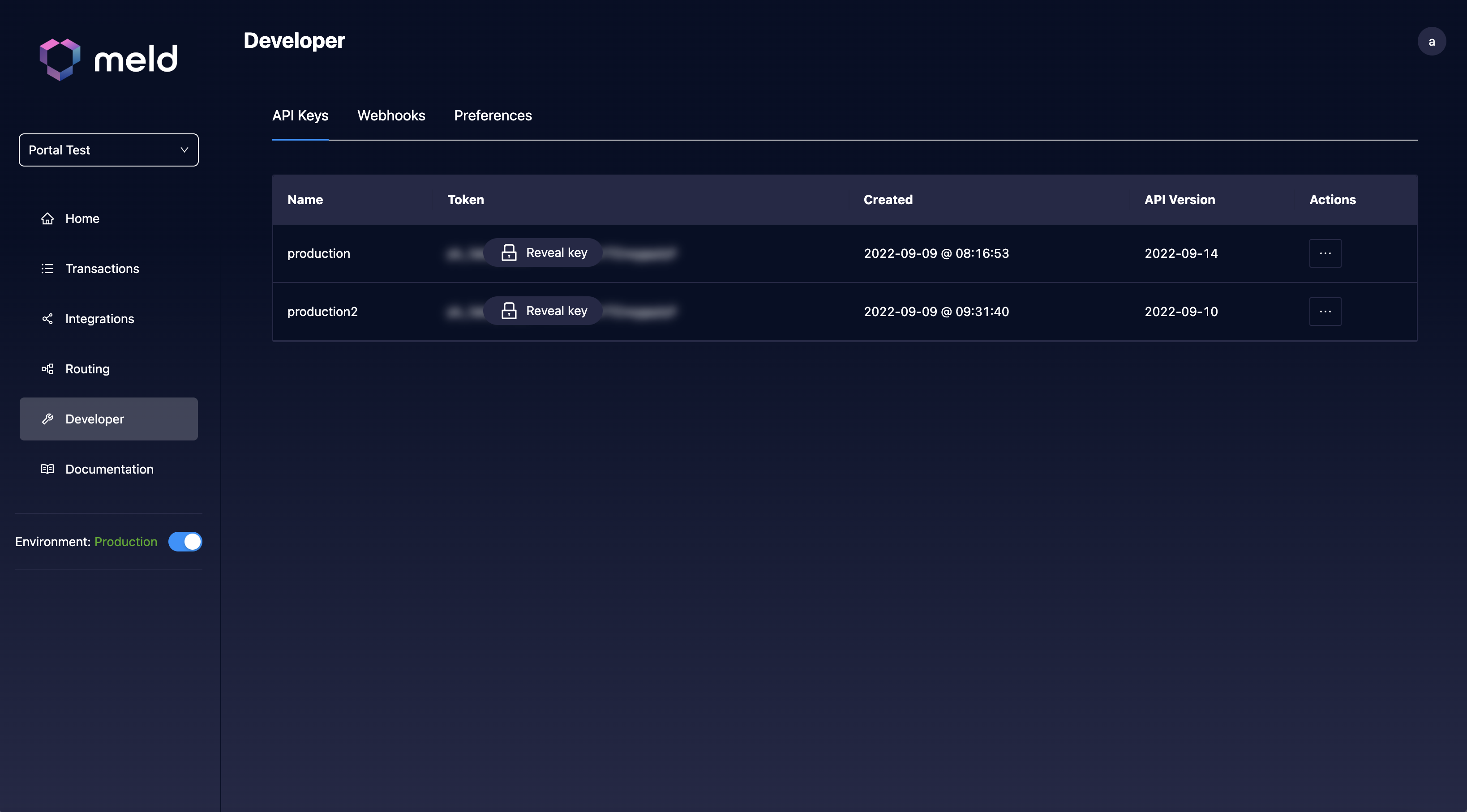
3. Copy the API key for your target environment:
* **Production** keys are tied to Meld's production environment (`https://api.meld.io`).
* **Sandbox** keys are tied to Meld's sandbox environment (`https://api-sb.meld.io`).
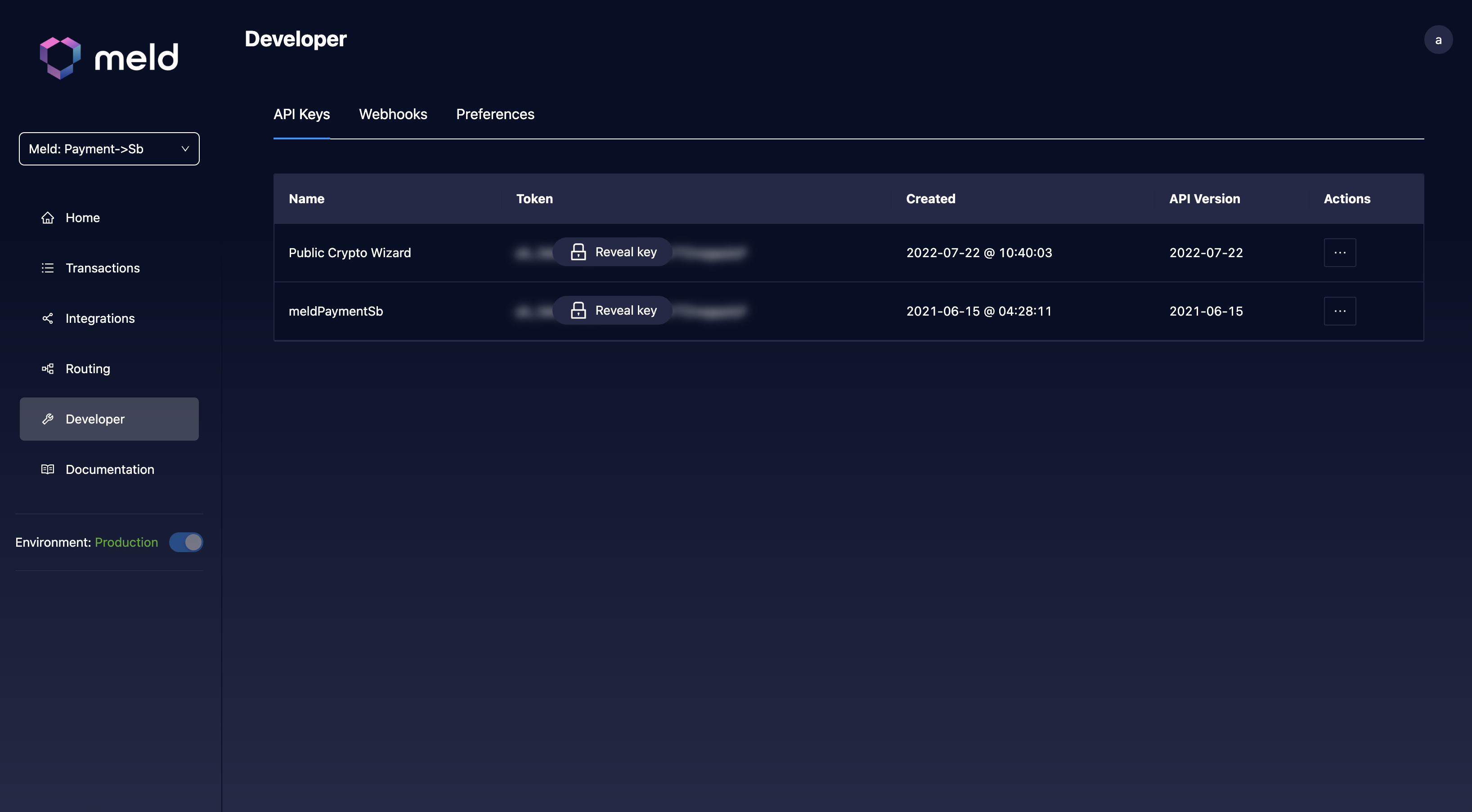
Treat your API keys as absolutely confidential. If your API key is ever exposed, inform Meld immediately so we can roll your key. Unless you are using the **Public Crypto Wizard** key, never expose your API key in client-side code.
When making an API call, prefix the key with the word `BASIC` in the `Authorization` header — for example, `Authorization: BASIC `.
## Using the Crypto Wizard
If you are only using the Meld Crypto Wizard, ignore any key marked **Production** or **Sandbox**. Instead, you will see a **Public Crypto Wizard** key as well, and the URL in the popup is the URL for your personal Crypto Wizard. Do not use any other API key for your Crypto Wizard — doing so may risk exposing sensitive data. This only applies to the Crypto Stack, not the Bank Linking or Payments stacks.