

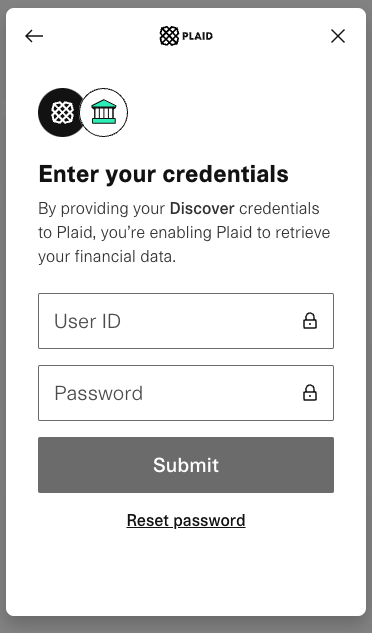
 For security reasons, many institutions will open their login screens in a new popup to enforce an OAuth login. In that case, the login screen will be made by the institution, rather than the provider. Here’s an example:
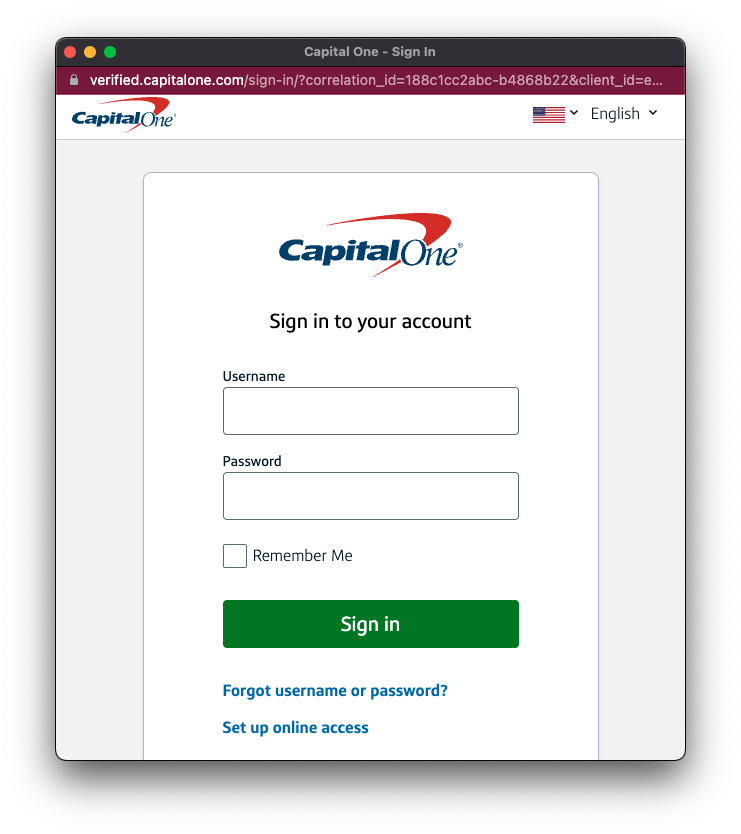 Once the user enters their username and password, if they have multi factor authentication set up with their bank, they may have to enter a pin or passcode. After this, provider will complete the connection to the institution, and once the user sees a success screen they can close the widget.
Once you have successfully completed a connection, you can now view the user’s financial data. See Get Connection Data for more information.
Once the user enters their username and password, if they have multi factor authentication set up with their bank, they may have to enter a pin or passcode. After this, provider will complete the connection to the institution, and once the user sees a success screen they can close the widget.
Once you have successfully completed a connection, you can now view the user’s financial data. See Get Connection Data for more information.
Next steps
To see what to do next, including which webhooks to expect once a connection completes, see Get Connection Data.Connection issues
There are several reasons why a connection might fail. The most prevalent reason is that the user entered the incorrect credentials, in which case they will be asked to reenter their credentials. A user may also connect to an institution where they don’t have any eligible accounts. For example, Meld does not support Mortgages for Plaid right now, so if the user uses Plaid to connect to an institution where they only have a mortgage account, they may not be able to connect it, and would see a message like this: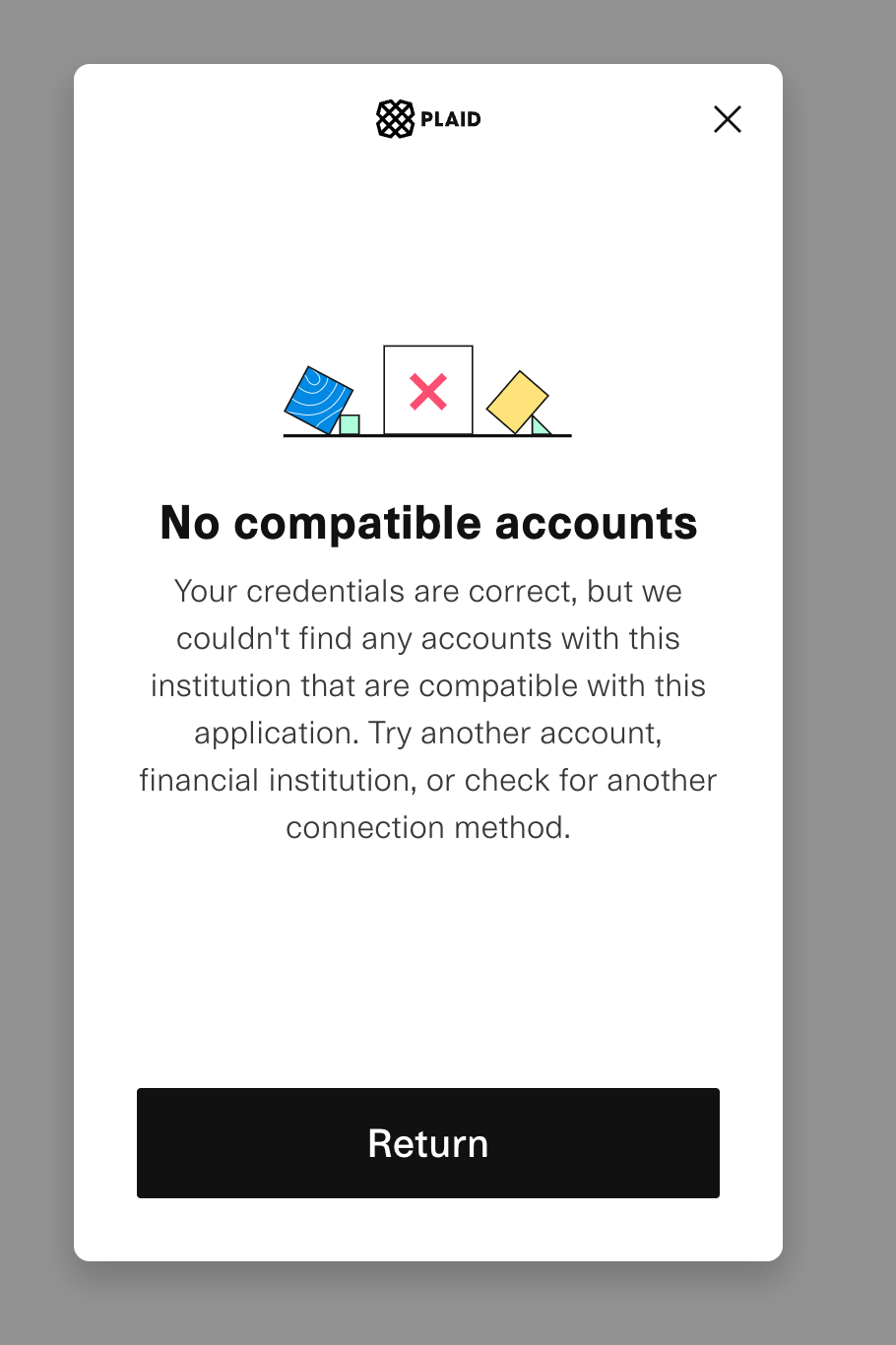 Sometimes, a service provider may temporarily have an issue connecting to a particular institution. While Meld tries to mitigate this by noticing breakages and steering users towards providers whose connection to that institution is working, on occasion users may still see a screen like below:
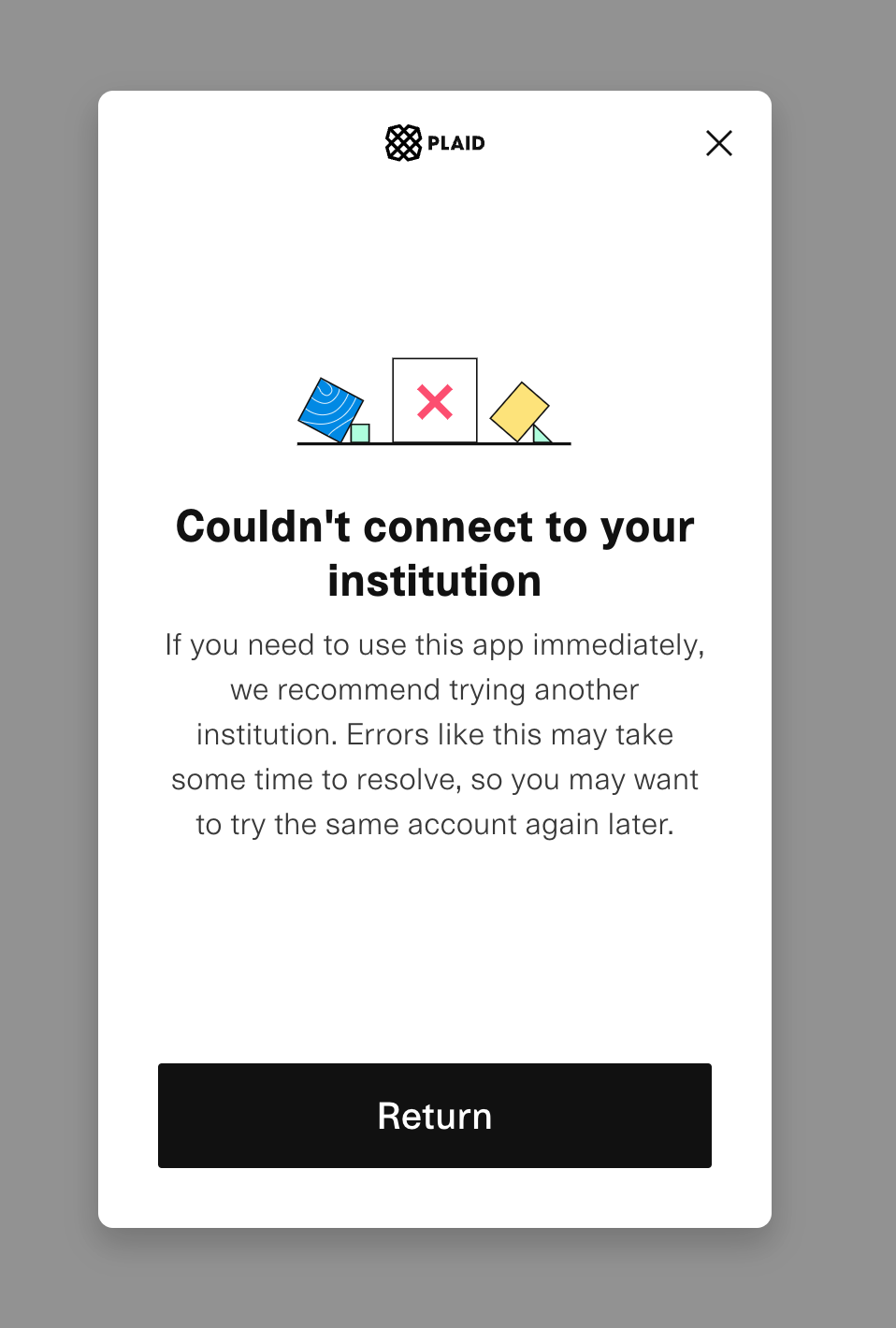 In this case, the user should go back and select a different institution, or route to the same institution through a different provider. For more information on the latter option, see Bank Linking Routing.