

Summary of the steps
- KYC the user with your own provider, and get their consent to share it
- Create a Meld customer and store the
customerId - Submit the KYC — either a share token or raw data plus documents
- Wait for
APPROVED - Start the transaction with
bypassKyc: true
Before you begin
- You have contacted your Meld account manager to enable this product for you
- You have a KYC provider account and have integrated their KYC flow
- You get a 1 time token from each onramp you use and add it to your KYC provider dashboard
- You gather end-user consent in your UI before sharing KYC data with Meld and downstream partners
For sandbox testing details, see KYC testing.
Flows at a glance
To enable this flow, do the following:
Step 1: KYC Provider Setup
This step is needed for token share. If you’re passing the raw KYC data instead, you can skip this step. This requires you to integrate a KYC provider, and use them to KYC your user. Note that the steps below show the Sumsub dashboard as an example. Get a share token from each onramp you will pass the KYC token to and add them in your KYC provider dashboard in the Partners tab.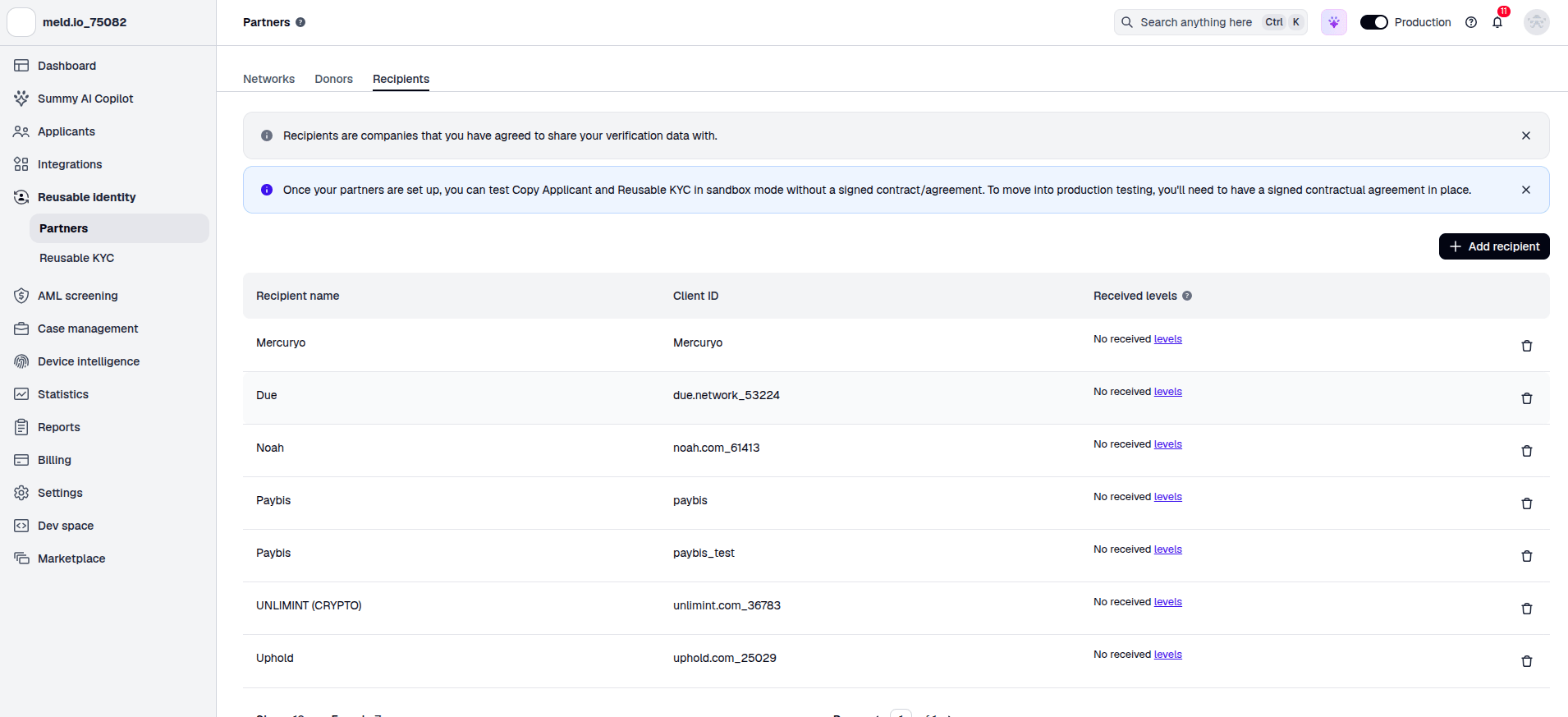
Step 2: KYC the User
In order for your user to not be asked for any additional KYC information by the onramp, you must collect, at minimum,- Identity document (Driver’s license, ID card, Residence permit, or Passport)
- Selfie (advanced liveliness check)
- Applicant data
- First name
- Last name
- Country
- Street
- Street (line 2)
- City
- State
- Postcode
- Nationality
- TIN / SSN
- Tax residence country
- Date of birth
- Phone Number
network-partner-level2.
Step 3: Create a Meld customer
This step is required for the user to skip logging into the onramp, and is a one-time setup per user. CallPOST /accounts/customers and pass in the user’s first name, last name, email address, phone number, and birthday.
Request
Response
id as the Meld customerId. You need it for submit and export.
With Meld-Version dated 2023-04-01 or later, the customer response also includes serviceProviderCustomers (including KYC status after submit).
Step 4: Submit KYC
Here, there are 2 flows to pass Meld the user’s KYC data. The first (and preferred) flow is via a KYC provider share token, while the second is via raw data. Call:POST /accounts/customers/{customerId}/kyc/initiate
Choose a mode. Both modes return the same response shape and use the same webhook to signal approval.
Note that the steps below show the Sumsub as the KYC provider as an example.
Mode A — KYC provider share token (TOKEN_IMPORT)
No raw PII or document images transit through this request.
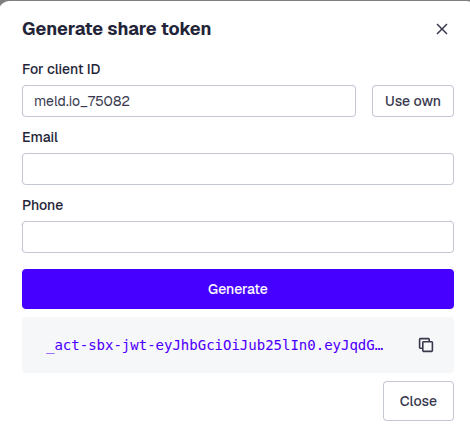
Generate the KYC share token for client id meld.io_75082 (the exact steps depend on which KYC provider you use).
Request (application/json)
Response
status is APPROVED when the imported applicant already matches Meld’s verification level; otherwise it may be PENDING. url is a KYC provider WebSDK link when present — often not needed if status is already APPROVED.
Mode B — Raw applicant data (RAW_DATA_IMPORT)
Use when you collect KYC using a KYC provider that Meld doesn’t support, or if you collect KYC information directly from the user without using a KYC provider.
Send multipart/form-data. Do not send this mode as JSON — RAW_DATA_IMPORT is only accepted on the multipart route.
Multipart parts
data JSON schema
Field notes
Example (curl)
Response
Meld creates (or reuses) the KYC provider’s applicant, uploads the documents, and requests review immediately.
Wait for approval
For either submit mode, listen for theCUSTOMER_KYC_STATUS_CHANGE webhook until payload.status is APPROVED. See Webhook events for the full event catalog and delivery behavior.
payload.status is REJECTED, the user failed KYC. They may retry submit with corrected data. If they still fail, then the user will have to try KYCing with the onramp directly, in the onramp’s widget.
Step 5: Initiate a transaction
Pass Meld thecustomerId of the user when you call POST /crypto/session/widget. Make sure to include the param "bypassKyc": true, which tells Meld to look up that customer’s KYC information and forward it to the onramp.
Request
Response
widgetUrl or serviceProviderWidgetUrl, then the user go straight to the onramp’s payment screen, as seen in this demo video.
And that’s it! Congrats, you are now using Meld’s Unified KYC product to enhance your users’ experience!