

Before you begin
- You have completed Step 2: Add your service providers.
- You have your Meld API key and know which environment it belongs to (see Step 3: Meld API Key).
- You have a publicly reachable HTTPS URL on your backend that can accept webhook deliveries.
Introduction
Meld uses webhooks to send you real-time updates when an event happens in your account — for example, a customer connects with new financial accounts, or new updates have been made to a customer’s financial accounts and/or transactions. The webhook flow:- Meld receives a webhook from the service provider that an action has happened.
- Meld processes the webhook.
- Meld sends you a corresponding webhook letting you know what happened.
Environments
Meld offers both production and sandbox environments. The base URL for each is:The same webhook flow applies in both environments, but each environment has its own API key and its own webhook URLs in the Dashboard. Set webhooks up separately for sandbox and production.
Steps to send webhooks from the service provider to Meld
For accounts that Meld shares with you (these show as “Shared Meld Integration” in the Dashboard), webhooks from the provider to Meld have already been set up — no work is needed on your part. Also, some service providers (such as Robinhood) don’t support webhooks, so no setup is needed for those either.
-
In the Meld Dashboard, open the Integrations tab and locate your Meld webhook URL. Webhook URLs are per service provider, per environment (sandbox and prod) — view the URL for any provider by clicking on it and expanding it. The URL clearly indicates which environment and which service provider each link is for. If in doubt, reach out to Meld.
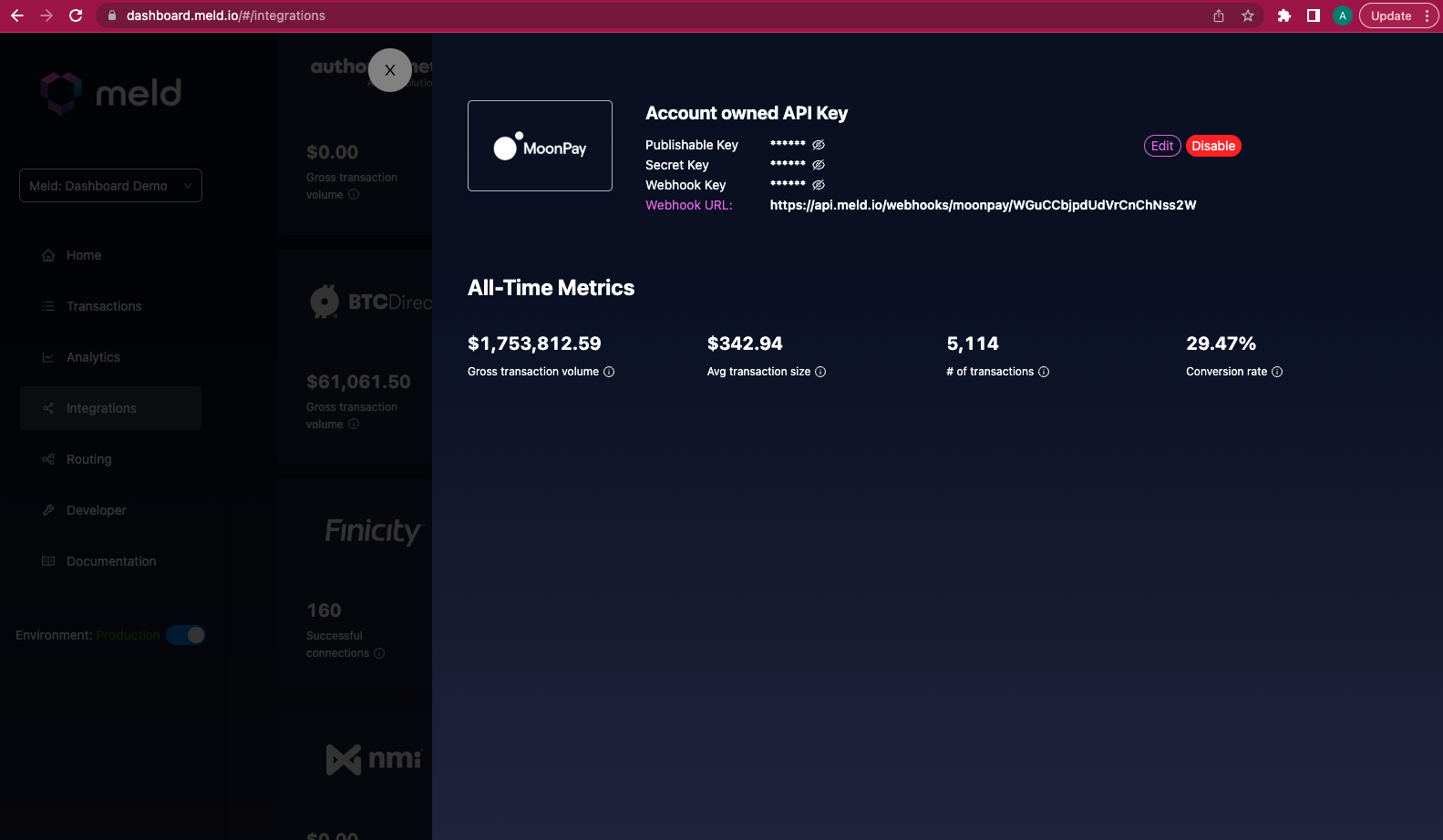
- Take the webhook URL from the Meld Dashboard and add it in the service provider’s dashboard so that the provider sends Meld webhooks for your account. Events vary between providers — to be safe, sign up for all available events.
Not all service providers have a dashboard. For those that don’t, you may need to reach out to them directly so their team can set this up. Once both steps are complete, Meld starts receiving webhooks from the service provider whenever transaction or connection information changes, and forwards that information to you in Meld’s outbound webhooks (see the next section).
MX Webhooks
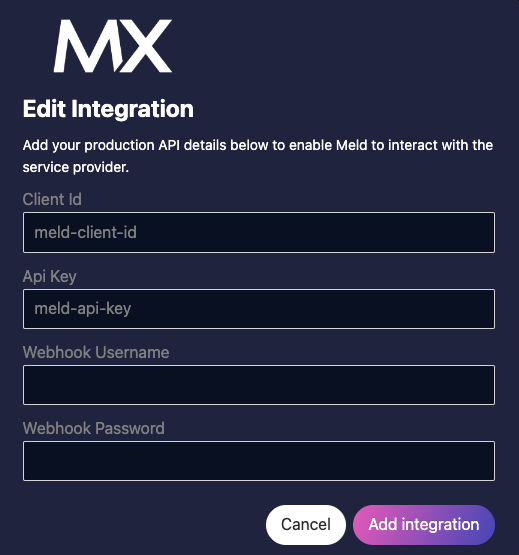
MX specifically requires a webhook username and password when setting up webhooks to Meld. However, Meld needs your MX API Key and Client ID before generating a URL for you to use to set up webhooks in the MX dashboard. Therefore, when setting up an MX integration, the recommended order of operations is:- Add your MX API Key and Client ID in the Meld Dashboard.
- After Meld provides you with a Meld webhook URL, use that URL to set up a webhook profile on MX’s dashboard, along with a username and password.
- Return to Meld’s Dashboard and add the username and password to the MX integration credentials.
Steps to receive webhooks from Meld
All of the steps for configuring webhooks to be sent to you from Meld can also be done through the UI in the Developer tab of the Meld Dashboard, which Meld recommends for ease of use.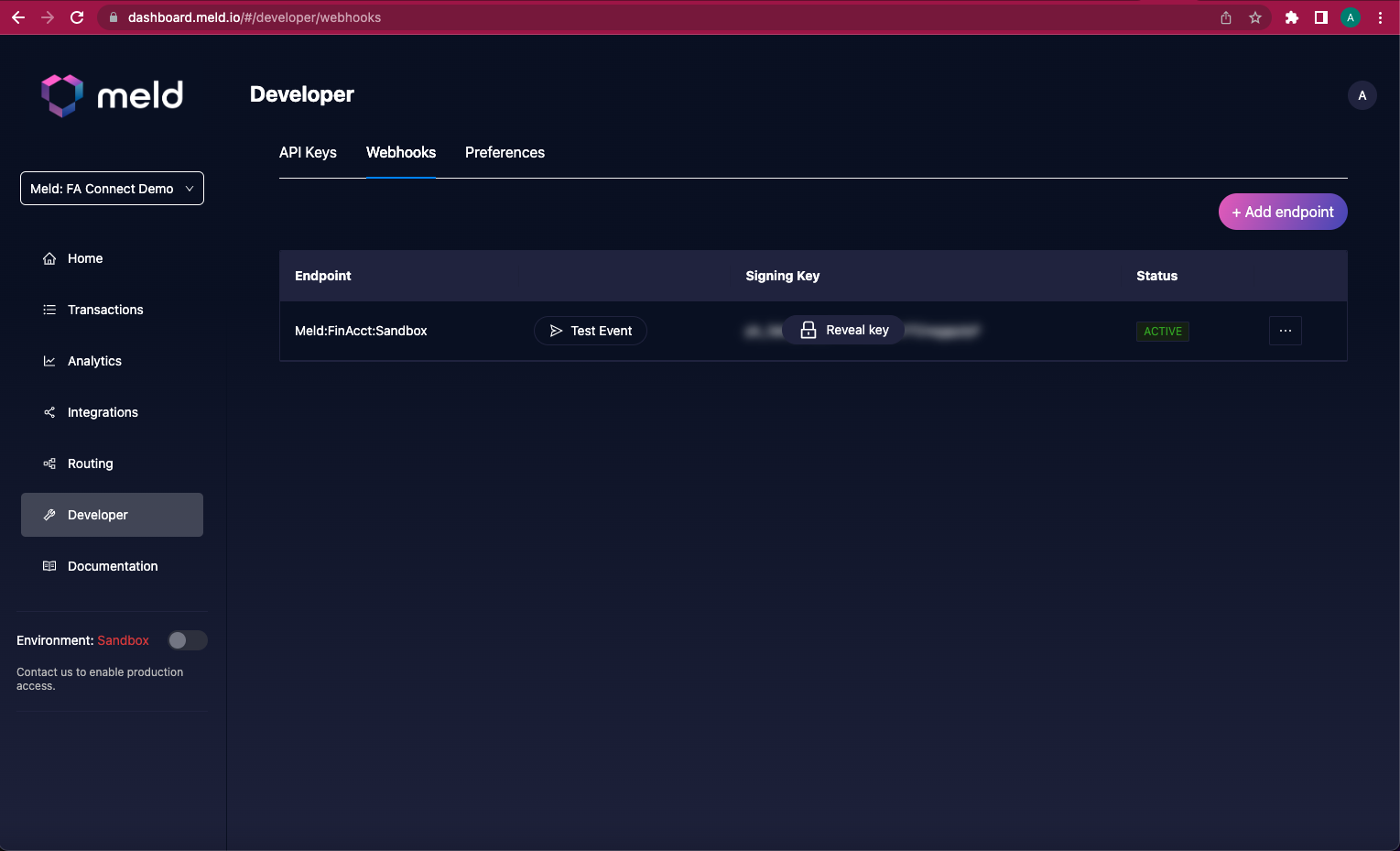
-
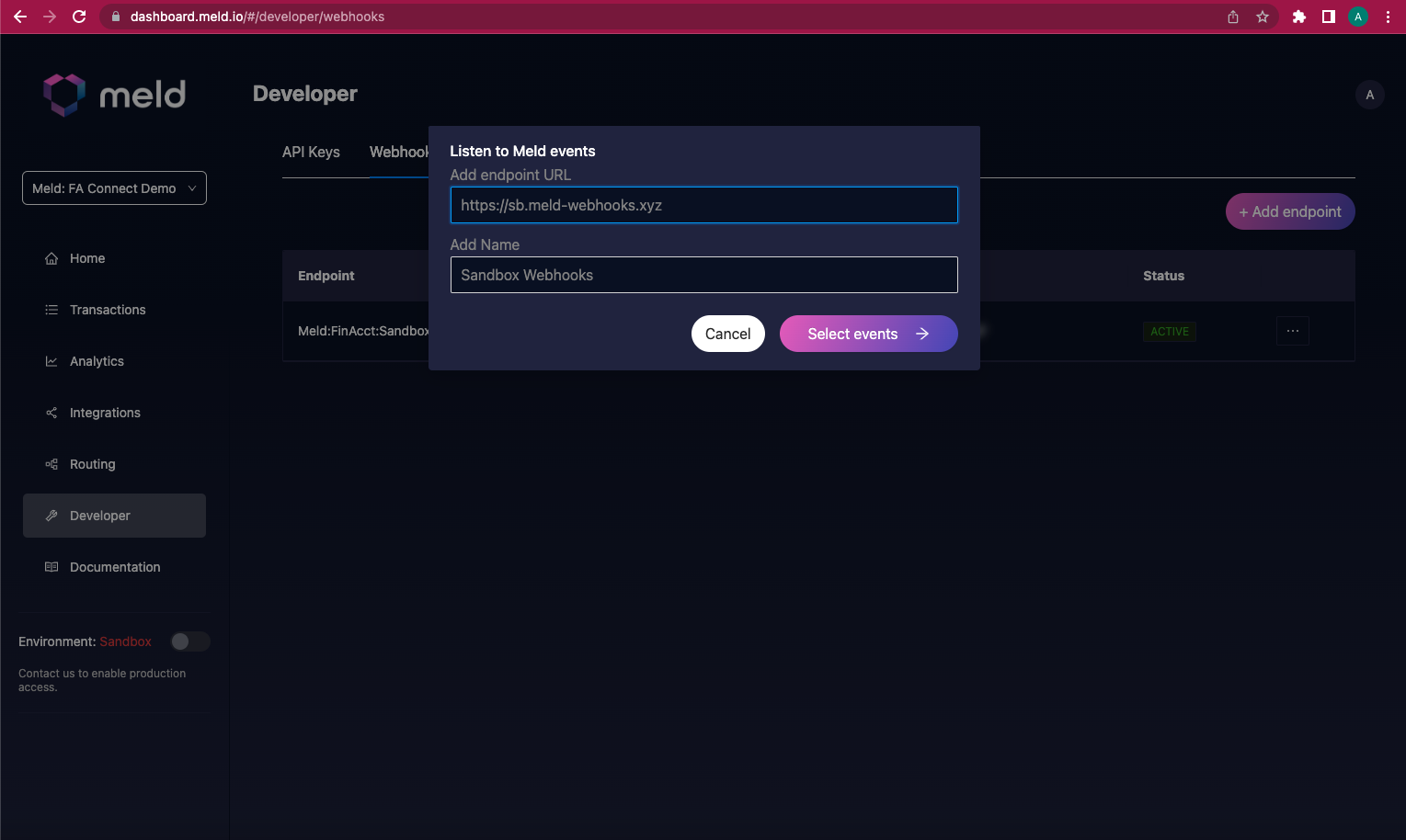
Click Add Endpoint, add your URL, and name the webhook profile.
-
Select the events you want to receive webhooks for. Meld recommends subscribing to all webhooks so you don’t miss any updates.
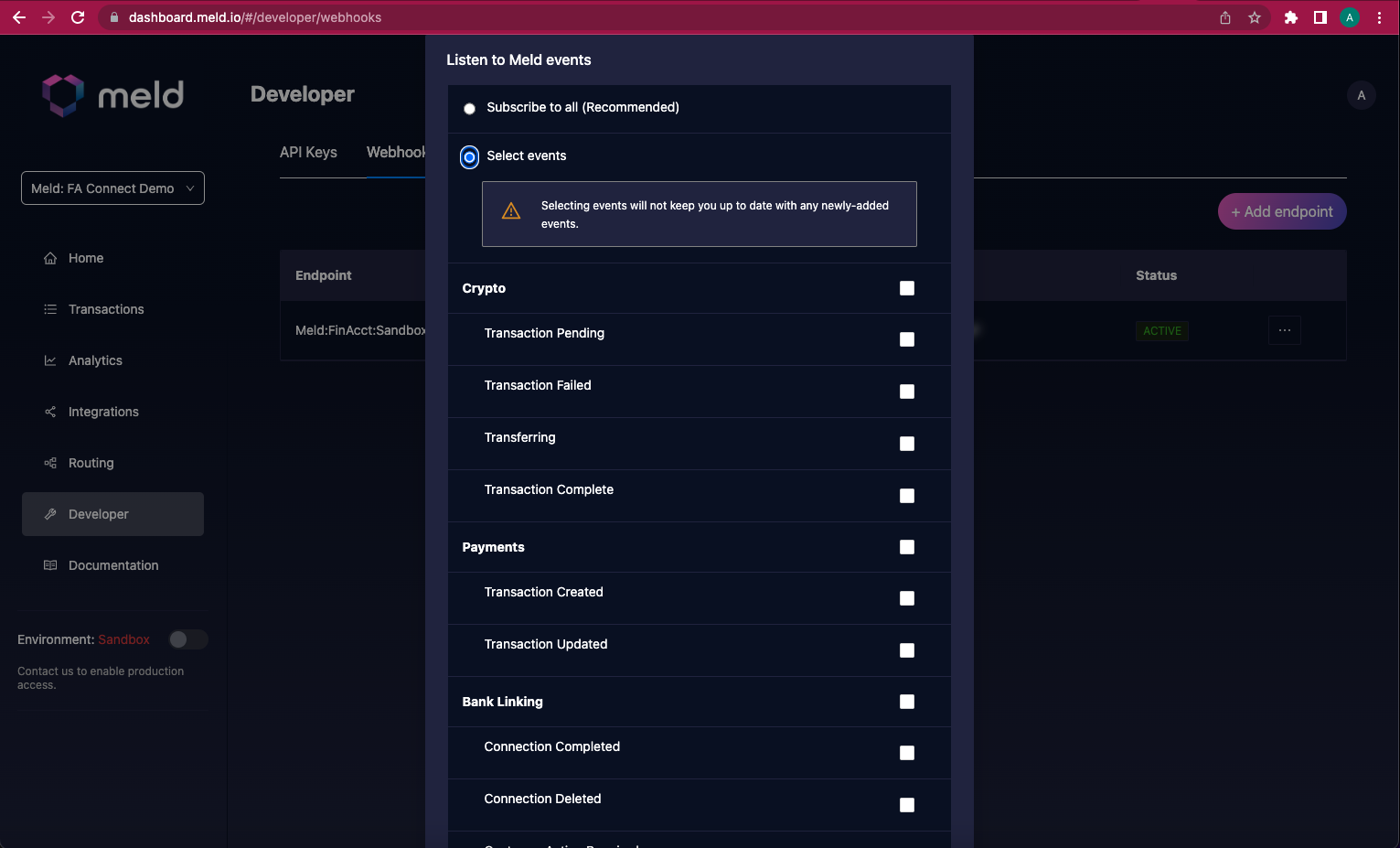
- Click Add Endpoint to save.
Setting up webhooks via the API
If you prefer to set up webhooks through the API rather than the Dashboard: Step 1. Using the API Key Meld has issued to you, send aGET request to {api_base_url}/notifications/webhooks/event-types. You will receive a list of all event types available.
Sample request:
POST request to {api_base_url}/notifications/webhooks. You will receive a 201 Created status code and details of your webhook profile.
Sample request:
When you created a profile, Meld sent a
WEBHOOK_TEST event to the designated URL right away. If you do not receive a WEBHOOK_TEST webhook:- Do a health check on your webhook source.
- Check that the webhook is pointing to the right destination.
- Make sure your destination server is running.
Resources
- See Bank Linking Webhook Events for the event types you can subscribe to.
- See Webhook Authentication for how to verify Meld’s signature.